

Manage your IP camera recordings in the cloud.
Store footage from your RTSP security cameras away from the camera itself. Set recording hours for each camera, find an event by date and time, and share the clip with your team.
Explore recording managementKeep multiple cameras in an organized workspace.
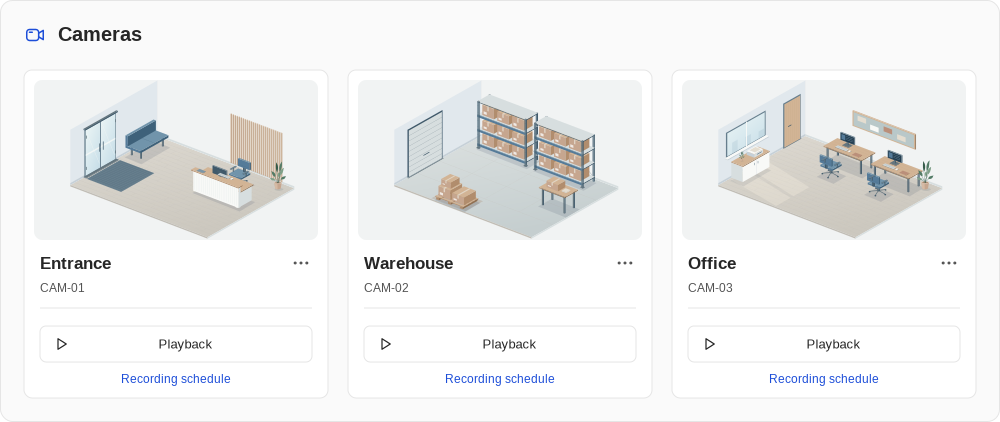
Give cameras names, locations and tags. Filter the camera list by recording and license status to find devices that need your attention.
- Current status
- Follow cameras that are recording, idle or experiencing connection issues from the camera list.
- Multiple views
- Arrange cameras side by side in MultiView and review past footage against a shared time.
Recording hours, retention and recording status each have a purpose.
Choosing when to record and how long to keep the footage are different decisions. The panel lets you keep track of both.
- Recording schedule
- Sets the hours when a camera should record. Each camera can have its own hourly schedule.
- Retention period
- Defines how many days recordings are kept under the camera’s license. Past footage remains accessible within that period.
- Recording monitoring
- Review recording periods and gaps in the dashboard. Setting a schedule does not mean footage was recorded at every moment.
When a camera connection drops, new footage cannot reach the cloud and recordings may have gaps. Previously stored footage remains accessible within its retention period.
Your team works with the cameras in one organization.
Two roles cover administration and everyday recording use. You can also create a file sharing link to send a recording to someone outside the organization.
| Role | Panel access |
|---|---|
| Organization administrator | Camera, user, license and payment management. Recording playback, downloads and sharing. |
| User | Viewing cameras, accessing recordings, downloading and sharing. |
Both roles see all cameras in the organization. There is no option to hide individual cameras from specific users.
Two access options for shared files
Organization links are for signed-in team members. Public links let anyone with the link access the file without signing in.
ShareHow does camera footage reach the cloud?
Your RTSP camera
The camera provides a video stream accessible over the network.
Cloud storage
The stream is received and stored in the cloud according to your recording schedule.
Playback and download
Open stored recordings by date and time, then watch or download them.
What is RTSP?
RTSP is a protocol for setting up and controlling a camera’s streaming session. vigi accesses the stream using the camera connection details you provide.
The camera must support RTSP, and its stream address must be reachable by the service.
Can I record to the cloud with my existing cameras?
- If you’re connecting an IP camera directly
- Check your camera model’s manual for RTSP support. RTSP lets the recording service connect to the camera’s live stream. During setup, use the manufacturer’s stream details to test the connection in the panel.
- If your cameras connect to an NVR or DVR
- Check the recorder’s manual to see whether it provides an RTSP stream for each camera channel you want to record. During setup, connect to the recorder, scan its channels and select the cameras you want to record to the cloud.
- Network access
- The cloud recording service needs to reach the camera or recorder stream from outside your local network. Check your internet upload speed against the number of cameras and the stream quality you plan to use.
- A license and recording schedule
- Assign a suitable, valid license to the camera and configure a recording schedule. Retention depends on the license.
Start with your own camera.
Create an account, then check the camera connection and your first recording in the panel.